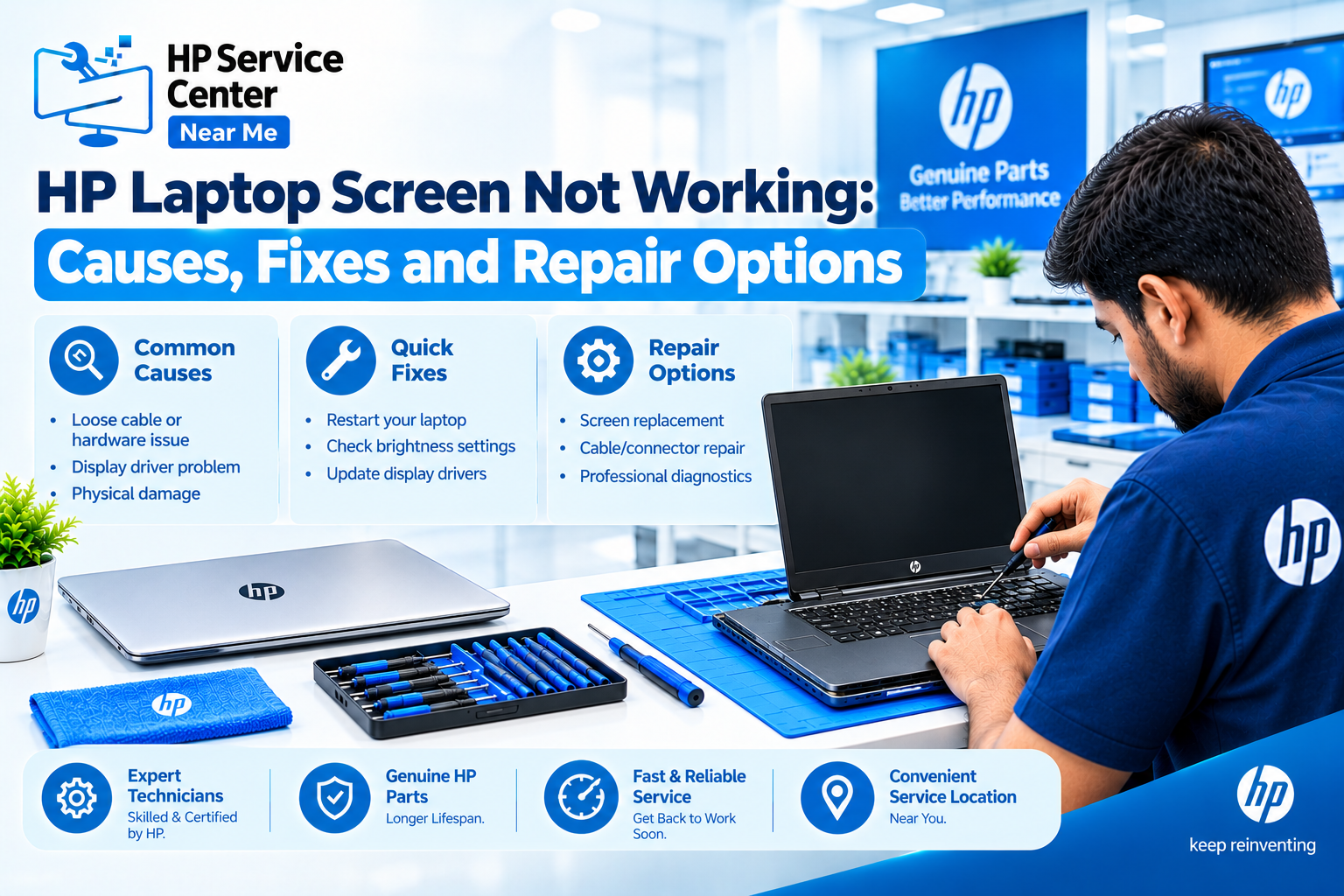
An hp laptop screen not working problem usually comes from a software glitch, a loose cable, a drained battery, or a damaged panel. Most software causes take less than 15 minutes to fix at home. Hardware causes need a trained technician.
This guide explains the common causes, the safe fixes, and the warning signs that mean you should stop. It also shows where to find repair help in Noida.
Why Is Your HP Laptop Screen Not Working?
An hp laptop screen not working usually points to one of five causes: a driver error, a power fault, a backlight failure, a loose cable, or panel damage. Each cause leaves a different pattern, so match your symptom to the list below.
HP Laptop Black Screen
An hp laptop black screen means the display shows no image while the laptop may still run. Check for fan noise and a lit power button. If both are active, the fault often sits in the graphics driver, the display cable, or a stuck power state. or a stuck power state.
HP Laptop Screen Flickering
Hp laptop screen flickering usually comes from a faulty driver, a wrong refresh rate, or a worn display cable. Open the lid slowly and watch the screen. If the flicker changes with the hinge angle, the cable is the likely cause.
HP Laptop Screen Is Too Dim
A dim screen usually means a low brightness setting or a failed backlight. Shine a torch at the screen from a side angle. If you see a faint image, the panel works but the backlight does not.
HP Laptop Screen Not Turning On but the Power Light Is On
This looks like an hp laptop screen not turning on, but the computer is often awake. Press Caps Lock and watch the light. Listen for the startup sound. These signs show that the system runs and only the display fails.
Lines, Spots, or Distorted Images
Lines and spots usually point to physical panel damage. Pressure, drops, and a pen left on the keyboard before closing the lid are common triggers. Software rarely causes permanent lines.
Use this table to check an hp laptop screen not working at a glance.
| Symptom | Likely Cause | First Action |
| Black screen, fan running | Driver or power state | Hard reset |
| Flickering | Driver or cable | Update driver, test hinge |
| Very dim image | Backlight | Torch test |
| Vertical lines | Panel damage | Use external monitor |
How Do You Fix an HP Laptop Screen Not Working at Home?
You can fix many cases of an hp laptop screen not working with six safe checks. Follow the steps in order, and stop if anything feels risky.
1. Check Whether the Laptop Is Turning On
Press Caps Lock. If the light changes, the system runs. In that case, you face an hp laptop display not working issue rather than a power issue.
2. Raise the Brightness
Press the brightness keys on the function row. Then test again in a dark room. A low setting can look like a dead screen.
3. Disconnect External Devices
Remove USB drives, docks, and cables. A faulty accessory can send the image to the wrong output.
4. Try an External Monitor
Connect a monitor with an HDMI cable and press Windows + P. If the monitor works, the graphics system is fine. The panel or cable is then the problem.
5. Perform a Hard Reset
Shut down the laptop and unplug the charger. Hold the power button for 15 seconds. Then reconnect the charger and start again. This step fixes many cases of hp laptop screen not turning on.
6. Restart the Graphics Driver
Press Windows + Ctrl + Shift + B. The screen may blink once. If the display works only for a short time, update the driver from the HP support website. This also helps with hp laptop screen flickering.
After these steps, run the HP PC Hardware Diagnostics test. Press F2 during startup and choose the display test if your model lists it. If the test screen also shows lines, the hp laptop screen not working issue is in the hardware.
How Can You Tell If an HP Laptop Screen Not Working Is a Hardware Problem?
A hardware fault is likely when the problem stays the same after a hard reset, a driver update, and a diagnostics test. Each result below points to a different part.
| Test Result | What It Suggests |
| External monitor works, laptop screen is black | Panel, cable, or backlight |
| External monitor is also blank | Graphics hardware or motherboard |
| Flicker changes with hinge angle | Display cable |
| Faint image under a torch | Backlight |
| Lines appear in diagnostics | Panel |
These results suggest a cause, but they do not prove it. A persistent hp laptop black screen can come from several parts. Only a technician can confirm the exact fault after opening the laptop. Therefore, treat every hp laptop display problem as a clue, not a final answer.
What Mistakes Make an HP Laptop Screen Not Working Problem Worse?
The biggest mistakes are forcing the laptop, pressing the screen, and opening the case without skill. Avoid these actions:
- Pressing the power button again and again
- Pressing on the screen to remove lines
- Cleaning the screen with glass cleaner or a wet cloth
- Opening the back cover without the right tools
- Charging with a non-HP adapter
- Ordering a new panel without checking the model number
Each mistake can turn a small hp laptop display problem into a costly repair. Meanwhile, a patient and simple approach saves both time and money.
When Should You Visit a Repair Service for an HP Laptop Screen Not Working?
Visit a repair service when basic checks fail or when you see physical damage. Look for these signs:
- A cracked or leaking screen
- Persistent hp laptop screen flickering after a driver update
- Visible lines or dark patches
- Liquid exposure, which needs an immediate shutdown
- A blank display after every step above
If you live in Delhi NCR, you can read about the HP service center in Noida before you visit. Check the center’s authorization status before you hand over your laptop. Also back up your files first, because most screen faults do not harm the stored data.
What Should You Ask a Repair Technician About an HP Laptop Screen Not Working?
Ask the technician to name the faulty part and give a written quote before any work starts. Clear answers protect you from unnecessary repairs. Use this list:
- Is the fault in the panel, the cable, or the motherboard?
- Is the replacement part original?
- What warranty covers the part and the labour?
- Can I see the old part after the repair?
- Was the hp laptop display not working issue tested on an external monitor?
A good technician answers these questions without delay. If the shop cannot explain why an hp laptop screen not turning on, ask for a second opinion.
Follow HP Service Center Nearby Me on Facebook and Instagram for expert HP laptop care tips, repair updates, exclusive offers, and money-saving deals. Stay connected!
Read our blogs for HP laptop repair tips, troubleshooting guides, expert advice, and the latest service updates!
What Are the Most Common Questions About an HP Laptop Screen Not Working?
1. Why is my HP laptop screen black but the power light is on?
The laptop is awake, but the display, driver, or cable has failed. Try a hard reset and an external monitor to narrow down an hp laptop black screen.
2. Why does my HP laptop screen keep flickering?
A faulty driver, a wrong refresh rate, or a loose display cable usually causes it. Update the driver first, then test the hinge.
3. Can an HP laptop display problem be fixed without replacing the screen?
Yes, if the cause is a driver, a setting, or a loose cable. A cracked panel or dead backlight needs replacement.
4. Why is my HP laptop screen very dim?
Low brightness settings or a failed backlight are the common reasons. A faint image under a torch confirms a backlight fault in an hp laptop screen not working case.
5. How can I check whether the problem is with the screen or the laptop itself?
Connect an external monitor. If it shows an image, the laptop works and the hp laptop display not working fault lies in the panel or cable.