HP laptop overheating usually happens because of blocked vents, dust, heavy apps, or a weak cooling fan. A warm laptop during heavy work is normal. Constant heat, loud fans, or sudden shutdowns are not.
This guide explains the causes of hp laptop overheating and shows how to fix hp laptop overheating safely. If your hp laptop getting hot problem needs repair, you will also find help in Pune.
Why Is Your HP Laptop Overheating?
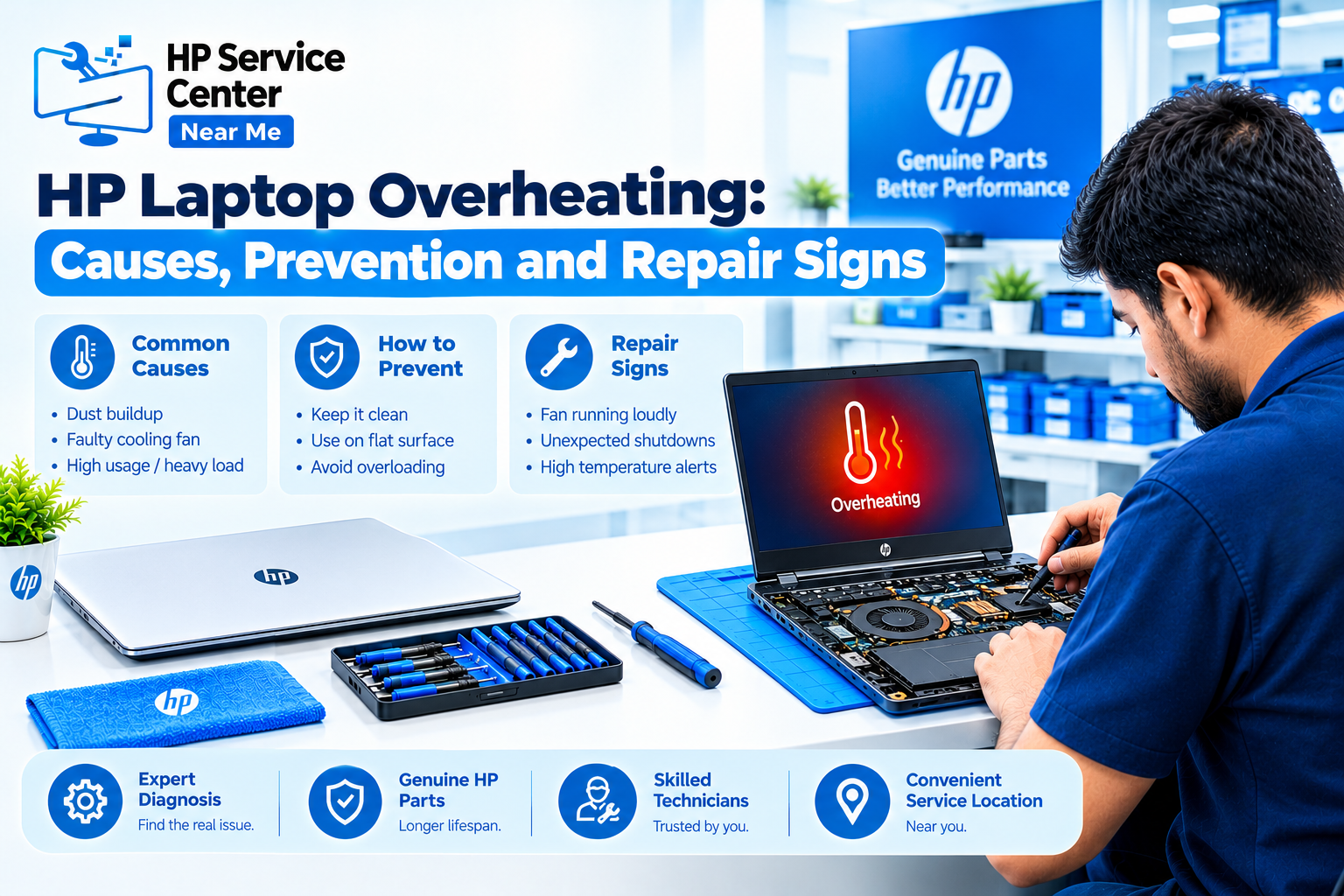
HP laptop overheating comes from poor airflow, a heavy workload, or a cooling part that has worn out. Dust and old thermal paste are the most common hidden causes. Each cause of an hp laptop getting hot leaves a different clue.
Dust Blocking the Air Vents
Dust blocks the vents and traps heat inside the body. This creates an hp laptop heating problem that grows slowly, so many users miss it.
Too Many Apps Running in the Background
Background apps keep the processor busy at all times. Press Ctrl + Shift + Esc and check the CPU column. Many open browser tabs are a common reason for an hp laptop getting hot even during light work.
Faulty or Noisy Cooling Fan
A weak fan cannot move enough air. You may hear hp laptop fan noise that sounds like a buzz, a rattle, or a constant roar. A silent fan under heavy load is also a warning sign.
Using a Laptop on a Bed or Soft Surface
Beds, sofas, and pillows cover the bottom vents. The laptop then pulls in its own hot air.
High CPU Usage During Gaming or Heavy Tasks
Gaming, video editing, and large spreadsheets push the processor to its limit.
Ageing Thermal Paste or Internal Cooling Issues
Thermal paste moves heat from the processor to the heat sink. It dries out after several years. As a result, hp laptop overheating continues even when the vents are clean.
Use this table to match the clue to the cause.
| Cause | Typical Clue | Home Fix Possible? |
| Dust in vents | Hot air, loud fan | Yes, on the outside only |
| Background apps | High CPU in Task Manager | Yes |
| Failing fan | Rattle or weak airflow | No |
| Soft surface | Heat builds on a bed | Yes |
| Dry thermal paste | Heat even when idle | No |
How Can You Fix HP Laptop Overheating at Home?
You can fix most cases of an hp laptop heating problem with six safe steps. This is how to fix hp laptop overheating without opening the case. Follow the steps in order:
- Place the laptop on a hard, flat surface.
- Keep all air vents clear.
- Close extra apps and browser tabs.
- Install Windows and HP driver updates from the HP support website.
- Clean visible dust around the vents with a soft, dry brush. Never use liquids or sharp tools.
- Book an inspection if the heat continues.
Next, check the power plan. Choose Balanced mode in Windows settings. Performance mode makes the fan work harder and adds to hp laptop overheating.
Also, close apps that start with Windows. Open the Startup tab in Task Manager and disable items you do not need.
Then run a simple test. Press F2 at startup to open HP PC Hardware Diagnostics and choose the fan test if your model lists it. If the fan fails, the answer to how to fix hp laptop overheating lies with a technician.
Cleaning the vents also reduces hp laptop fan noise in many cases.
Why Is My HP Laptop Overheating While Charging?
Charging adds heat from the adapter and the battery, so the laptop runs warmer than on battery power. Mild warmth is normal. Strong heat is not.
HP laptop overheating while charging becomes a concern when the base feels too hot to touch. Use this table to judge your case.
| Situation | Normal or Concern? |
| Warm base during a video call | Normal |
| Hot base while the laptop sits idle | Concern |
| Adapter too hot to hold | Concern |
| Loud fan at 100% charge with no load | Concern |
Use only the original HP adapter. A cheap adapter can send extra heat into the laptop. Also, avoid gaming while the battery charges, because both loads add heat together.
If hp laptop overheating while charging continues after these changes, the battery or charging circuit may need testing. This type of hp laptop heating problem needs a proper test.
How Do You Prevent HP Laptop Overheating?
You prevent HP laptop overheating by keeping vents clear, using a hard surface, and removing dust every few months. These habits cut hp laptop overheating at no cost. Follow these tips:
- Leave open space behind and under the laptop.
- Use a cooling pad during long tasks.
- Keep the laptop away from direct sunlight.
- Clean the outer vents every three months if your room is dusty.
- Watch for any change in hp laptop fan noise, because a new sound often warns of a fault.
- Act early if you see an hp laptop getting hot more often than before.
What Mistakes Make HP Laptop Overheating Worse?
Knowing how to fix hp laptop overheating also means knowing what to avoid. The worst mistakes are using a vacuum on the vents, spraying air at close range, and ignoring early signs.
A vacuum can spin the fan too fast and damage it. Compressed air at close range can push dust deeper inside. Some users also also replace the battery when the real fault is the fan.
Similarly, unknown cooling software from random sites cools nothing. Check the cause first, then buy a part.
When Does HP Laptop Overheating Need Professional Repair?
Visit a technician when an hp laptop getting hot problem continues after you clean the vents and update the software. Watch for these signs of hp laptop overheating:
- The laptop shuts down often because of heat.
- The fan makes grinding or rattling hp laptop fan noise.
- The base feels very hot during normal tasks.
- Performance stays slow, or thermal warnings appear.
- The steps on how to fix hp laptop overheating bring no change.
- Heat from hp laptop overheating while charging stays high with no heavy task.
Stop using and charging the laptop if the battery swells, you smell burning, or you see smoke. Do not open the case or remove the battery yourself.
If you live in Pune, you can read about the HP service center in Pune before you visit. Check the center’s authorization status first. Also, back up your files.
A technician can clean the internal fan, replace dry thermal paste, and test the battery. This is the usual solution for a stubborn hp laptop heating problem. Ask the technician to share the temperature reading before and after the repair. A clear drop proves the work.
Follow HP Service Center Nearby Me on Facebook and Instagram for expert HP laptop care tips, repair updates, exclusive offers, and money-saving deals. Stay connected!
Read our blogs for HP laptop repair tips, troubleshooting guides, expert advice, and the latest service updates!
What Are the Most Common Questions About HP Laptop Overheating?
1. Why does my HP laptop get hot even when idle?
Background apps, dust, or dried thermal paste usually cause hp laptop overheating at idle. Check Task Manager first.
2. Is it normal for an HP laptop fan to run constantly?
No, a fan should slow down during light use. Constant hp laptop fan noise points to dust or heavy background apps.
3. Why does my HP laptop overheat while charging?
Charging adds heat. A weak adapter, dust, or a worn battery can make hp laptop overheating while charging worse.
4. Can dust cause an HP laptop to overheat?
Yes. Dust blocks airflow and is a leading cause of hp laptop overheating.
5. When should I get my HP laptop cooling system checked?
Get it checked when hp laptop overheating or noise stays after cleaning the vents, or when the laptop shuts down on its own.